
Download PushBullet – Free Notification Sync, Messaging & File Transfer Tool
Instant Notification Sync: What PushBullet Brings to Your Desk
In an era where we juggle multiple devices—smartphones, tablets, laptops, and desktop PCs—the friction of switching between screens can cripple productivity. PushBullet was created to erase that friction, turning your computer into a seamless extension of your mobile world. By routing push notifications, SMS, WhatsApp, Facebook Messenger, and a host of other messaging services directly to your browser or desktop client, PushBullet lets you read, reply, and even act on messages without ever touching your phone.
The result is a smoother workflow, fewer interruptions, and a tangible sense that your devices finally “talk” to each other. Because the app is built on a lightweight, cloud‑driven architecture, the sync is near‑real‑time, and the latency you experience is typically measured in milliseconds. Whether you’re a remote worker answering client emails while a Slack conversation pops up on your phone, a student swapping links between a tablet and a laptop, or a power user who needs to push files under 25 MB across devices, PushBullet delivers a unified experience that feels both natural and secure.
Its free tier already provides enough functionality for most casual users, while a reasonably priced Pro subscription unlocks larger file limits, unlimited message history, and enhanced storage. In short, PushBullet is more than a notification manager; it’s a productivity bridge that keeps you in control of every digital conversation, no matter which device you’re using.
Core Features and How They Work
PushBullet’s feature set revolves around three core pillars: notification mirroring, cross‑device messaging, and instant file sharing. Each pillar is designed to work together in a way that feels intuitive, whether you’re on Windows, macOS, Android, or iOS. Below is a detailed look at the capabilities that set PushBullet apart from other notification tools.
- Real‑time notification mirroring – Incoming alerts from Android and iOS appear instantly on your desktop browser or native client, allowing you to read and dismiss them with a click.
- Two‑way messaging support – Reply to SMS, WhatsApp, Kik, Facebook Messenger, and other popular services directly from your PC without opening the mobile app.
- One‑click link and note sharing – Drag a URL or highlight text on your computer and “push” it to any connected device, where it appears as a clickable notification.
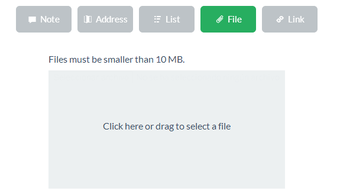
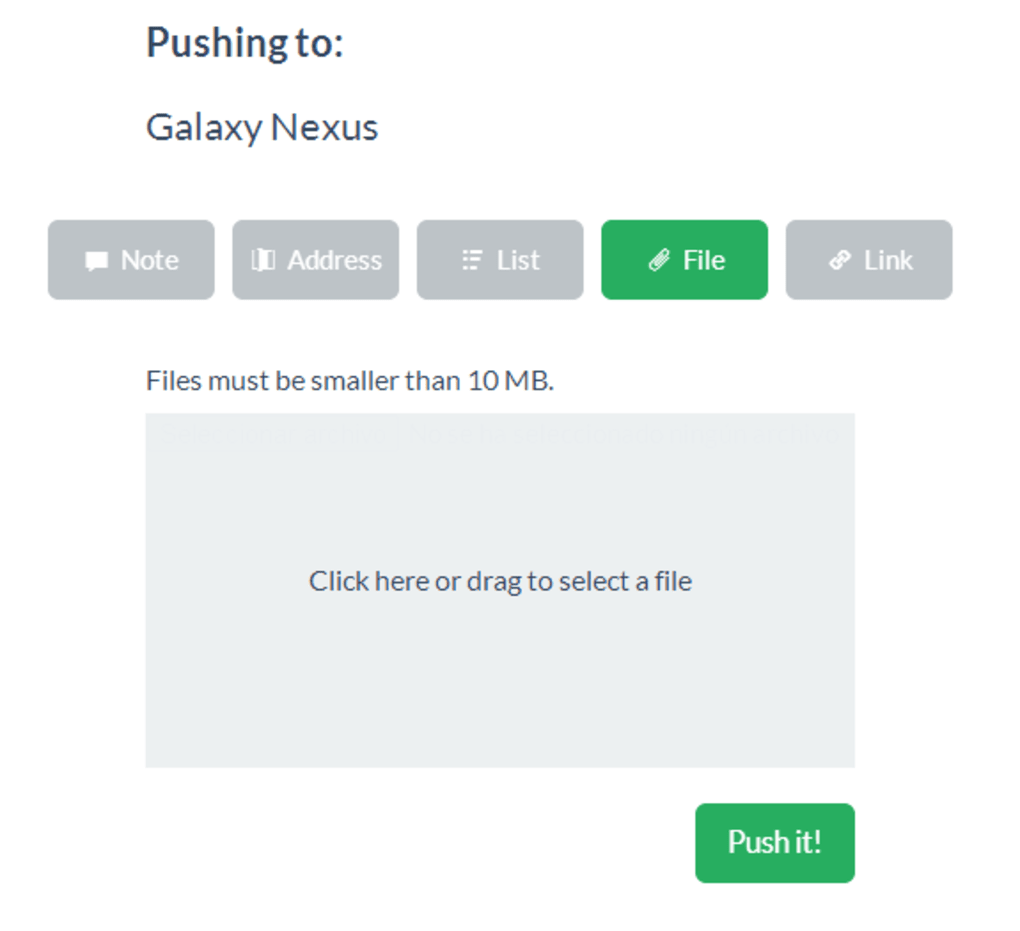
- File transfer under 25 MB (free) – Send photos, documents, and small media files instantly between devices; the Pro plan raises the limit to 1 GB per file.
- Channel creation for teams – Set up private channels to broadcast messages, links, or files to a group of collaborators, streamlining project communication.
- End‑to‑end encryption (Pro only) – Secure your most sensitive transfers with optional encryption, ensuring that only intended recipients can view the content.
- Multi‑account handling – Connect several Google or Apple accounts, then switch between them with a single click to keep personal and work communications separate.
- Cross‑browser compatibility – Chrome, Firefox, Edge, and Opera extensions all share the same backend, meaning you can choose your preferred browser without losing functionality.
- Custom notification sounds – Assign distinct tones to different devices or message types, helping you prioritize alerts at a glance.
All of these capabilities are tied together with a clean, minimalist UI that focuses on speed. The web extension sits in your toolbar, the desktop app appears as a discreet system tray icon, and the mobile apps integrate directly with the OS notification shade. Because the service relies on Google’s Firebase Cloud Messaging (for Android) and Apple Push Notification Service (for iOS), you get reliable delivery even when your devices are on different networks or behind firewalls. The result is a cohesive ecosystem where a single “push” can travel from your laptop to your phone, from your phone to a colleague’s tablet, and back again—all in a matter of seconds.
Step‑by‑Step Installation, First‑Run Setup, and Cross‑Platform Compatibility
Getting PushBullet up and running is intentionally straightforward, designed for users who want instant value without a steep learning curve. Follow these steps to start syncing your notifications across Windows, macOS, Android, and iOS.
1. Download the Browser Extension or Desktop Client
Visit the official PushBullet website or your browser’s extension store. For Windows and macOS, you can also download a native client that lives in the system tray (Windows) or menu bar (macOS). The extension supports Chrome, Firefox, Edge, and Opera, while the desktop client works on Windows 10/11 and macOS 10.13+.
2. Install the Mobile Apps
Search for “PushBullet” in the Google Play Store or Apple App Store. Install the app on every Android or iOS device you wish to link. The mobile app will request permission to access notifications, SMS, and contacts—granting these permissions is essential for full functionality.
3. Create or Sign In to Your Account
PushBullet uses your Google or Apple ID for authentication, streamlining the login process. After signing in, you’ll be prompted to name each device (e.g., “Work Laptop,” “Home Android”). Naming helps you identify where pushes are coming from and where they’re headed.
4. Enable Notification Mirroring
On Android, open Settings → Apps → PushBullet → Permissions and enable “Notification access.” On iOS, you’ll need to allow “Allow Notifications” and enable “Show on Lock Screen.” Once enabled, incoming alerts will appear on all connected devices.
5. Test a Push
From your desktop client, click the “Push” button, select a target device, and type a short note or paste a link. The message should appear instantly on your phone. Conversely, send a file from your mobile app to the desktop client to verify the transfer pipeline.
6. Fine‑Tune Settings
Visit the Settings menu on each platform to customize notification sounds, enable channel creation for teams, or toggle end‑to‑end encryption (available to Pro subscribers). You can also set a daily message limit if you want to stay within the free tier’s 100‑message cap.
PushBullet is officially compatible with Windows 10/11, macOS 10.13+, Android 5.0+, and iOS 12+. The web extension works on all major browsers, and the desktop client runs natively on both Windows and macOS, ensuring that you can stay connected no matter which device you prefer for daily tasks.
Pros and Cons – The Good, the Bad, and the Worthwhile
Pros
- Instant cross‑device notification sync – No more checking your phone every few minutes.
- Supports major messaging platforms – Reply to WhatsApp, SMS, and Facebook Messenger from your PC.
- Free tier is generous – Up to 100 messages per month and 25 MB file transfers are sufficient for casual users.
- Multi‑platform support – Works on Windows, macOS, Android, iOS, and all major browsers.
- Simple UI and minimal setup – Users can start pushing notes within minutes.
- Channel feature for teams – Improves collaboration without needing a full‑blown project management tool.
Cons
- Free tier limits – 100 messages per month and 25 MB per file may be restrictive for power users.
- No native Linux client – Linux users must rely on the browser extension.
- Pro subscription required for encryption – Sensitive data isn’t protected by default.
- Occasional duplicate notifications – Some users report receiving the same alert on both mobile and desktop.
- Battery impact on Android – Persistent notification access can drain battery faster than normal.
Conclusion & Frequently Asked Questions (FAQ)
PushBullet stands out as a practical, lightweight solution for anyone who wants to keep their notifications, messages, and small files within arm’s reach—whether they’re glued to a laptop or constantly on the move with a smartphone. The free version already provides enough power to replace manual copy‑and‑paste workflows, while the affordable Pro subscription unlocks the storage and security features that professionals demand. If you’re looking for a tool that truly integrates your digital life without demanding a steep learning curve, PushBullet is worth a download and a few minutes of setup. Its cross‑platform reach, reliable sync, and intuitive UI make it a solid addition to any productivity toolbox.
Is PushBullet free or do I need to pay for a subscription?
PushBullet offers a free tier that includes up to 100 messages per month and file transfers up to 25 MB. If you need unlimited messaging, larger file limits (up to 1 GB per file), and end‑to‑end encryption, the Pro plan costs $4.99 per month or $39.99 per year.
Can I use PushBullet on Linux?
There is no native Linux client, but the browser extension works perfectly on Chrome, Firefox, and Edge under Linux, providing the same notification mirroring and file‑push capabilities.
How secure is the data I send with PushBullet?
Data is transmitted over TLS, and Pro users can enable optional end‑to‑end encryption for added privacy. The free tier does not include encryption, so for highly sensitive files you may want to upgrade.
Can I push links and notes to multiple devices at once?
Yes. When you create a push, you can select multiple target devices or a channel, and the note or link will appear on all chosen devices simultaneously.
What browsers are supported for the PushBullet extension?
The official extension is available for Google Chrome, Mozilla Firefox, Microsoft Edge, and Opera. All versions support the same core features, so you can pick the browser you prefer.
Ready to experience frictionless notification management? Download PushBullet now and start syncing your devices in seconds.







